


The Ultimate FSLogix Deep Dive: Configuration, HA, and Optimization for VDI
As a solution engineer who has been in the trenches with VDI and Terminal Servers since the days of Windows NT 4.0, I’ve seen profile management evolve from a chronic pain point to a solved problem. The solution? FSLogix.
Before Microsoft acquired it, FSLogix was the “secret weapon” that VDI architects used to fix the unfixable. Today, it’s the default, non-negotiable standard for any modern VDI or multi-session Windows deployment, especially Azure Virtual Desktop (AVD).
This deep-dive guide will cover its uses, advanced configurations, and best practices for building a resilient, high-performance deployment, including specific GPO settings for clustered environments.
The FSLogix Toolkit: What It Is and Why You Need It
At its core, FSLogix is a set of tools designed to decouple the user profile from the Windows operating system. In non-persistent VDI, where a user’s virtual machine is destroyed or reset at logoff, this is essential.
Instead of copying a roaming profile (which is slow, fragile, and a primary cause of slow logins), FSLogix mounts a user’s profile, stored in a VHDX (virtual disk) file on a network share, directly into the OS at login. It’s instant, seamless, and transparent to Windows.
The FSLogix suite includes:
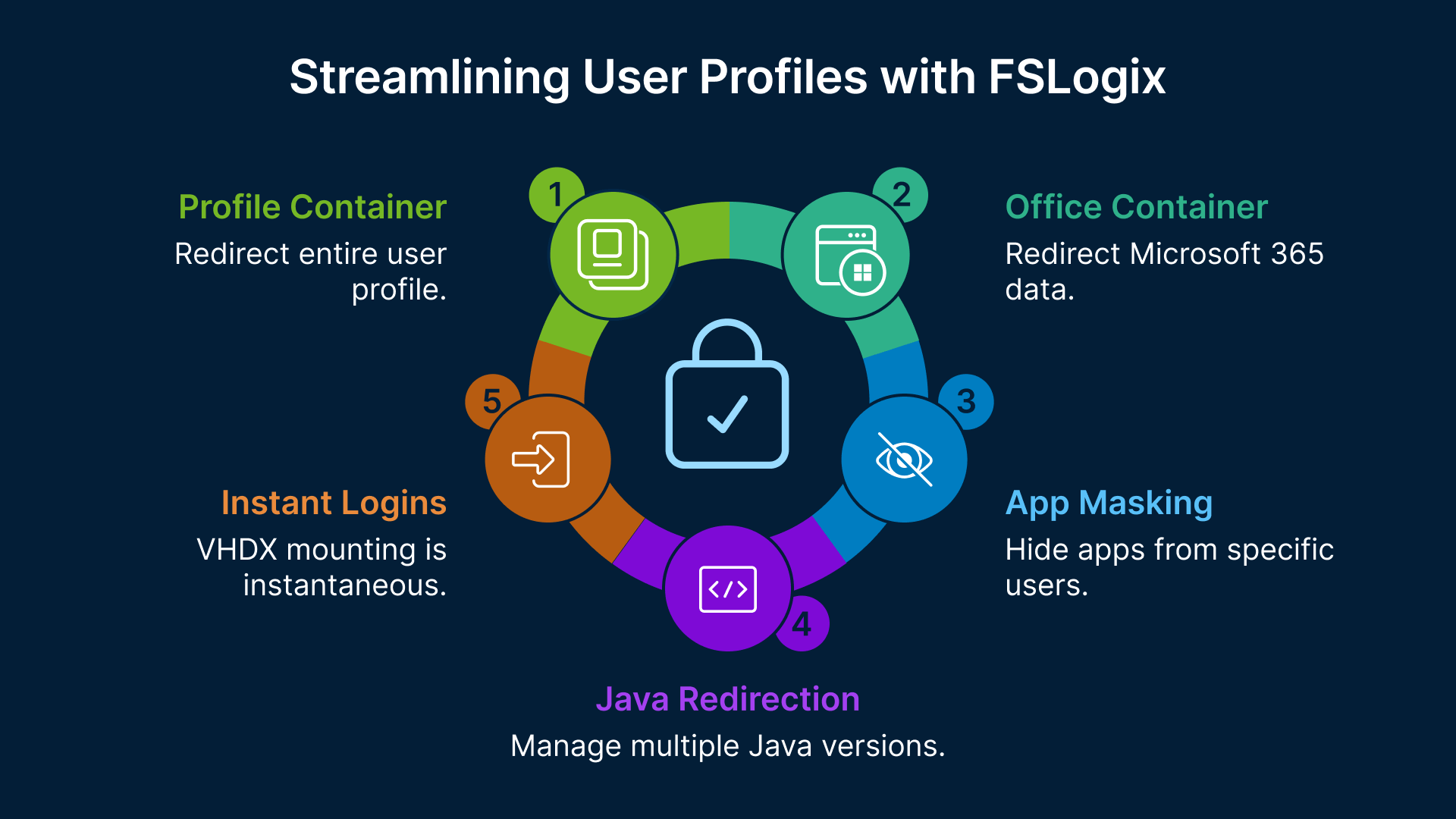
- Profile Container: This is the main component. It captures the entire user profile (C:\Users\<username>) and redirects it to the VHDX. This includes all app settings, registry keys (NTUSER.dat), and user data.
- Office Container (ODFC): This component only redirects the data for Microsoft 365 apps (Outlook cache .ost, Teams data, OneDrive cache, etc.).
- Application Masking: A powerful tool that allows you to “hide” applications, drivers, or fonts from specific users, even if they are installed on the base image. This dramatically simplifies “golden image” management.
- Java Redirection: A niche component to manage multiple versions of Java for specific applications.
The Great Debate: Profile Container vs. ODFC
This is the most common point of confusion. Let’s be clear:
Best Practice: In 99% of new deployments, you should use only the Profile Container.
Do NOT use a separate Profile Container and a separate Office Container. This is a common-sense myth that adds complexity, doubles the VHDX files to manage, and increases points of failure.
The Profile Container already captures all Office data. The only reason ODFC exists as a separate component is for legacy environments that already have another profile solution (like Citrix UPM or VMware DEM) and just want to add FSLogix to fix Office performance.
In your Group Policy (GPO) or registry settings, you simply configure the Profile Container Enabled = 1 and ensure Office data is included.
FSLogix Cluster & GPO Configuration
FSLogix Clusters are fundamental for ensuring user profile persistence. In this model, each “cluster node” is typically a high-availability file server (like a Windows Server 2022 Scale-Out File Server) that provides dedicated, fault-tolerant storage for the dynamic profile VHDX files.
This guarantees session consistency across different VDI hosts. Configuration is applied and managed through GPOs (Group Policy Objects), ensuring standardization and centralized governance throughout the environment. Each VDI instance uses the FSLogix Agent to connect to the cluster share over SMB (port 445).
FSLogix Configuration Parameters (via GPO)
Here is a baseline set of GPO settings for a production environment. These settings are applied via GPO, which writes the corresponding values to the registry.
Find the detailed parameters on The following link: https://thinfinity-workspace-v8-docs.cybelesoft.com/appendix/thinfinity-r-workspace-reference-architecture-for-high-availability-ha/fslogix-cluster-sizing-and-configuration
Here is a copy-ready deep-dive on FSLogix, integrating your specific configuration parameters.
Advanced Optimization & Resilience
Getting the GPOs set is step one. Making it fly and never fail is step two.
1. Optimization: The Redirections.xml File
This is the most powerful optimization tool. The Redirections.xml file allows you to exclude “junk” data from being saved in the user’s profile container. By excluding data, you keep the VHDX small, logins fast, and network traffic low.
A good Redirections.xml file should exclude:
- Browser caches (Chrome, Edge, Firefox)
- Temp folders
- Windows Search and Update logs
- Teams cache (FSLogix now handles Teams data very well natively, but some still exclude the media-stack folder).
You place this file on your network share and point to it in your GPO using the RedirectionXMLSourceFolder setting.
2. Resilience: Antivirus Exclusions (Non-Negotiable)
This is the #1 cause of profile corruption and performance issues. Your VDI session hosts must exclude the FSLogix processes and file locations from real-time antivirus scanning.
- Process Exclusions:
- frxsvc.exe
- frxshell.exe
- frxccd.exe (if using Cloud Cache)
- File/Directory Exclusions:
- %ProgramFiles%\FSLogix
- %APDATA%\FSLogix
- The network share(s) where your VHDX files are stored.
- File Extensions: .vhd, .vhdx
3. High Availability: Cloud Cache vs. Storage-Level HA
You have two main ways to achieve high availability.
- Storage-Level HA (Your “Cluster” Model):
This is the easiest and most reliable method. You use a storage solution that is already highly available (like a Windows Server 2022 Scale-Out File Server, a cluster, or Azure Files ZRS). You then set a single path in VHDLocations. If a storage node fails, the storage cluster handles it transparently. - FSLogix Cloud Cache (Recommended for DR):
Cloud Cache is the FSLogix-native HA solution. You configure multiple storage locations (e.g., one on-prem, one in Azure). FSLogix writes to a local cache on the VDI host first, then asynchronously replicates changes to all storage locations. This is more complex but provides true active-active access and disaster recovery.
4. Network Settings: The Unsung Hero
Your VDI session hosts and your file server must be as close as possible.
- Same Datacenter/Region: Never route core FSLogix traffic over a WAN.
- Same Subnet (Zero Latency): FSLogix traffic (SMB/445) is highly sensitive to latency. Place your VDI session hosts (clients) and your FSLogix file share on the same subnet. This eliminates any firewall, router, or traffic inspection device from the data path. Even a tiny delay from a firewall policy check can cause login slowdowns and profile hangs.
- Enable SMB Multichannel: Allows Windows to use multiple network connections to your file share, increasing throughput and resiliency
Expert Tips: FSLogix with Thinfinity VDI on OCI
This is a great, modern stack. Thinfinity is a VDI broker that is “infrastructure agnostic,” meaning it can manage session hosts anywhere—including OCI. FSLogix is the agent on those OCI session hosts.
Here’s how to make them work together perfectly.
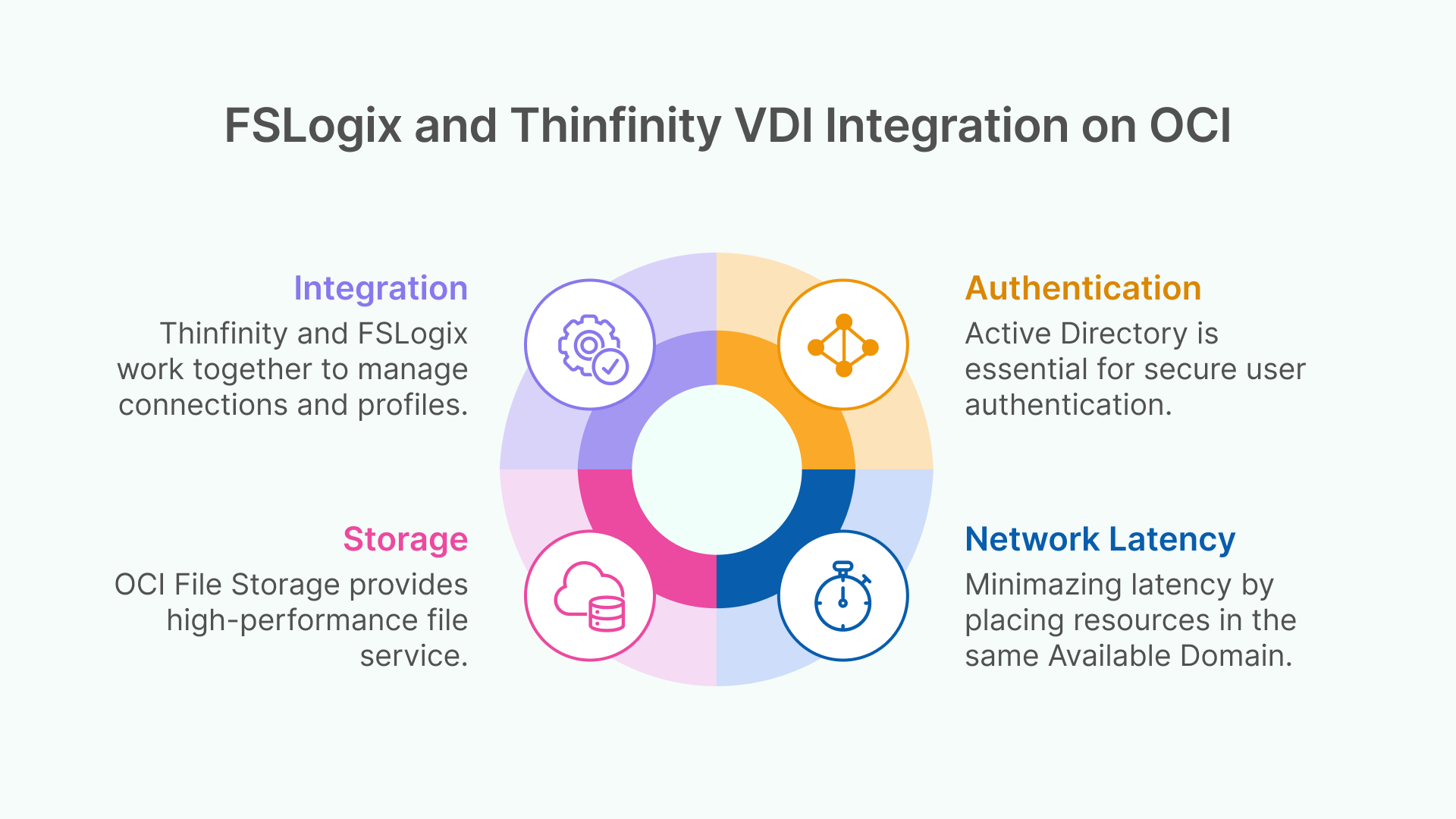
- Thinfinity and FSLogix are Partners: Thinfinity manages the connection, and FSLogix manages the profile inside the session. They don’t conflict; they complement each other. The Thinfinity non-persistent/multi-session model requires a solution like FSLogix.
- Authentication is King (Active Directory): FSLogix requires Active Directory. Your OCI-based VDI session hosts must be joined to an Active Directory domain. This means you must have Domain Controllers running on OCI Compute instances or have a line-of-sight connection (via OCI FastConnect or VPN) back to your on-prem AD.
- Storage on OCI: Your best bet is OCI File Storage. It’s a managed, zonal, high-performance file service that supports the SMB protocol.
- Create a File System in OCI.
- Create a Mount Target in the same VCN and Availability Domain as your Thinfinity session hosts.
- Configure the VCN Security Lists (firewall) to allow SMB (TCP/445) traffic only from your session host subnet to the File Storage subnet.
- OCI Network Latency: The “same AD” principle is critical in OCI. OCI’s Availability Domains are physically separate datacenters. While cross-AD latency is low, for the absolute best performance, your session host pools and your OCI File Storage mount target should reside in the same Availability Domain.
Conclusion: Is Not an Add-On
FSLogix is not merely a “feature” or an “add-on” for a VDI deployment; it is the cornerstone of the modern user experience. It has single-handedly solved the decades-old problem of profile management, transforming non-persistent VDI from a compromise into a high-performance, user-centric solution.
However, as this guide has demonstrated, a successful FSLogix deployment is an exercise in precision. The difference between a high-performance environment and a support-ticket nightmare lies not in if you use FSLogix, but how.
Success is built on a foundation of three pillars:
- Low-Latency, High-Availability Storage: Your profile solution is only as reliable as the file cluster it runs on.
- An Unobstructed Network Path: Placing VDI hosts and storage on the same subnet, free from inspection, is the single most effective way to guarantee fast logins.
- Intelligent Configuration: From GPOs to Redirections.xml, optimization is about what you exclude as much as what you include.
When architected correctly—with the same engineering rigor you apply to your VDI hosts and network—FSLogix becomes the silent, invisible hero of your virtual desktop infrastructure. It delivers the one thing that matters most: a user experience that is fast, resilient, and never gets in the way.



2 Comments
Thanks for the overview, now how do I actually Setup/install/configure and deploy it. I have found nobody that show how to set al this up from start to finish — only bits and overviews, with the basic configurations.
I hate so called Engineers, that label something as a configuration guide and gives nothing but a high level overview, this is what everyone does.
Hello Stephen,
I hear you—there’s a big difference between a strategy guide and a step-by-step implementation manual. Overviews are fine for theory, but they don’t help when you’re the one in the console trying to get it deployed.
We can help you bridge that gap. If you want to skip the high-level talk and get straight to the specific permissions, registry values, and deployment scripts for your environment, let’s talk.
You can book a technical call with us here and we’ll walk through your specific setup from start to finish.
Best regards,
Cybele Software.